Best Video Editing Software for Beginners in 2026
You don’t need the tool with the most features. You need one that matches your device, and how much you want to pay to remove a watermark.
Here’s the short version. Video editing software for beginners splits into two groups. Truly free, no catch: CapCut, Clipchamp, iMovie, and VN Video Editor. Free to try, paid to actually use: Filmora, PowerDirector, and Movavi — their free or trial versions stamp a watermark on everything you export. Every tool on this list is beginner-friendly—you can open any of them and start editing today. No color grading experience required.
What this guide covers
- A comparison table of all seven tools, side by side
- A breakdown of each one: what it’s known for, its standout features, and the one thing that’ll annoy you
- What to use if your phone is your only camera and your budget is zero
- An honest note on turning this into actual income
- Answers to the questions people search before picking one
1. CapCut — the easiest video editing software for beginners
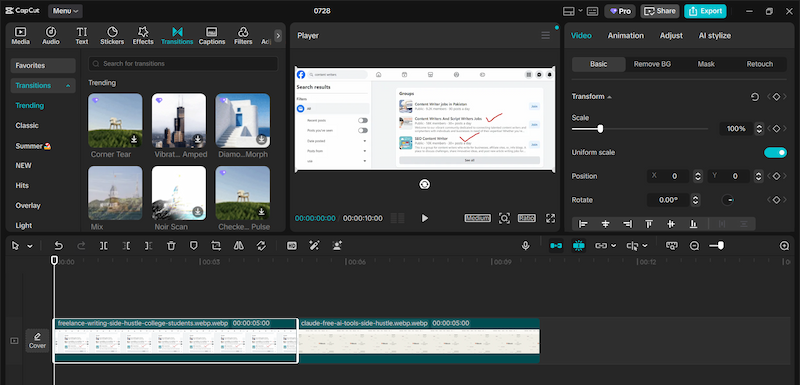
CapCut is known for two things: a huge library of trending, TikTok-style templates, and being one of the few free editors that doesn’t feel stripped down. It’s one of the most beginner-friendly video editors available today for a reason. Drop your clips into a template and you’ll have something styled and finished in minutes.
Under the templates, there’s a real editing suite. You get a multi-track timeline, keyframe animation, chroma key for green screen, and speed curves with an Auto Velocity tool for smooth ramping. The AI toolkit adds auto-captions, one-tap background removal, motion tracking, and text-to-speech in dozens of languages. The desktop app even has a canvas-based “Video Studio” mode that can build a scene from a text prompt before you touch a timeline. Exports are 1080p with no watermark, as long as you skip Pro-locked templates or AI effects.
Paid tiers unlock 4K export and the newer AI generation features. As of 2026, that’s roughly $9.99 a month for Standard and $19.99 a month for Pro — CapCut still doesn’t publish those as an official price sheet, and the exact number shifts by region, platform, and promotion, so treat those as ballpark figures and check the in-app price before committing.
Skip CapCut if you need 4K on the free tier, or if the TikTok-first design bothers you.
The auto-captions and background removal here do more work than people realize. I’ve gone deeper into what’s actually free among AI Photo editing tools like this one, if you want the fuller picture.
2. VN Video Editor — more manual control than CapCut, still free
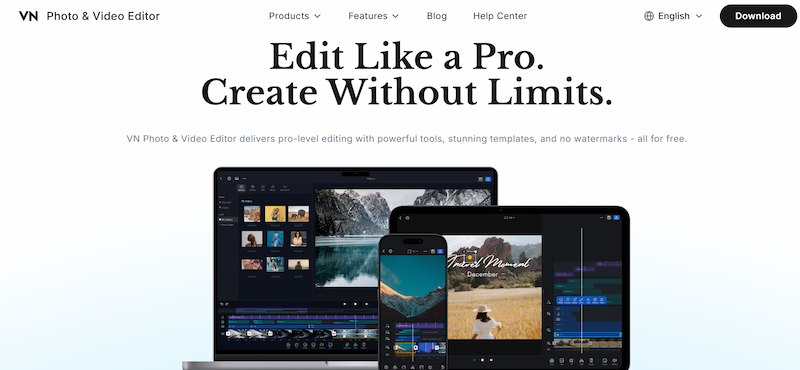
VN is known for something rarer than templates: a real multi-track timeline on a phone. It has keyframe animation, chroma key, and real color grading with LUTs and curves — tools most mobile apps skip. Nothing here is paywalled. No watermark, no subscription hiding the good stuff According to the VN’s Official site
The standout features are for people who want more precision than a template gives you. That means frame-accurate timeline zoom, picture-in-picture layering, blending modes, and curved speed ramps with several presets. It runs on iOS, Android, and Mac, and the toolset stays nearly the same across all three. VN has now released an official Windows version with a multi-track timeline, keyframes, Pro Mode, and project syncing features
The tradeoff: No advanced AI features like AI video generation, auto-editing, or AI object removal found in editors like CapCut or Filmora.
3. Clipchamp — built into Windows, easy to overlook
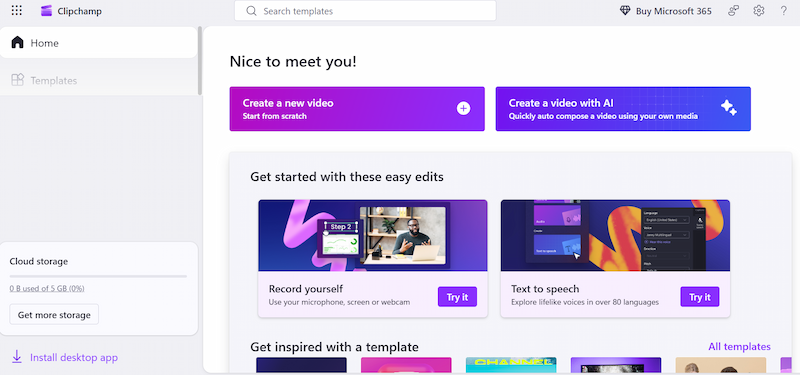
Clipchamp is Microsoft’s browser-based editor. Most people don’t realize it’s already on their machine if they run Windows 11. It’s not known for one flashy feature — it’s known for how much comes free, with no catch.
That includes screen recording and webcam recording built right into the editor, useful for tutorials or reaction videos without a separate app. You also get AI auto-captions in more than 80 languages, text-to-speech with a wide range of voices, and a “speaker coach” that reviews your pacing and flags filler words. The core timeline covers trimming, splitting, transitions, text overlays, and a decent stock library. Exports are unlimited, 1080p, and carry no watermark.
The one wall you’ll hit is 4K export. That sits behind Premium — often already included if you pay for Microsoft 365 Personal or Family, so check before paying for it twice.
4. iMovie — free, but only if you already own a Mac or iPhone
IMovie is known for making editing feel easy, not for any one power feature. It’s the tool most people cut their first video in, since it comes preinstalled on new Macs and is a free download on iPhone and iPad.
The standout features lean toward storytelling over raw control. Magic Movie and Storyboards use on-device AI to arrange your clips into a rough cut automatically. You’re editing a starting point instead of a blank timeline. The trailer templates turn a handful of clips into something that looks professionally scored and paced, in a couple of taps. And since it’s all Apple, you can start a project on your iPhone and finish it on your Mac through iCloud, with nothing to export in between.
The tradeoff is depth. You get the main timeline plus one overlay track — enough for basic picture-in-picture, split-screen, or green-screen effects, but not true multi-track stacking, and there’s no keyframe animation for custom effects. For trimming clips, adding music, and putting together something clean for social media, it does the job. For anything more layered, you’ll outgrow it fast — that’s when VN Video Editor or a desktop tool like Clipchamp is worth the extra step.
5. Wondershare Filmora — the one to pick once you’re ready to pay
Filmora is known right now for the fastest way into frontier AI video models without leaving your timeline. Filmora 15 can take a text prompt, turn it into a clip, and export it polished, using models like Veo 3.1, and Kling 2.5 — all inside the same app. Worth knowing upfront: that frontier-AI access sits specifically on the Advanced plan. The cheaper Basic plan removes the watermark but includes no AI credits at all.
Past that headline feature, the standout tools are AI Smart Cutout (background removal that tracks a moving subject through a shot), AI Extend (stretches a clip by generating new frames instead of freezing the last one), and auto-reframe (turns horizontal footage vertical for Reels or Shorts) — all AI-credit features, so the same Advanced-tier requirement applies. All of that sits on top of an easy drag-and-drop timeline and a library of roughly 2.3 million stock assets, effects, and transitions — a lot more than CapCut or Clipchamp offer.
The catch: every free export carries a watermark, no workaround. Basic removes it for around $9.99/month but skips AI entirely. Filmora’s Perpetual Plan is a one-time purchase that lets you use the version you bought forever, but future major version upgrades require a separate purchase, its around $39.99 a year, is what actually unlocks everything described above. If you want a tool that feels approachable but doesn’t look amateur, and don’t mind paying to actually publish anything, Filmora is a fair pick — just make sure you’re buying the right tier for what you actually want.
6. CyberLink PowerDirector — more editing depth than Filmora
PowerDirector is known, among the free-tier editors, for having the deepest feature set. It’s aimed at people who’ve outgrown Filmora but aren’t ready for a fully professional color-grading tool.
The standouts: TrueVelocity, CyberLink’s rendering engine that speeds up exports even on modest hardware. Full motion tracking. Native 360-degree video editing. Multicam sync for projects shot on more than one camera. An AI Video Generator that can restyle a clip into animation or apply a visual style from a set of preset thumbnails.
The free “Essential” tier watermarks exports and trims the feature list. Upgrading runs around $55–60 a year, or there’s a one-time lifetime option. Worth knowing before you buy: the AI tools run on a separate credits system on top of whatever plan you’re paying for. A subscription alone doesn’t mean unlimited AI use.
7. Movavi Video Editor — for making desktop video editing simple and beginner-friendly.
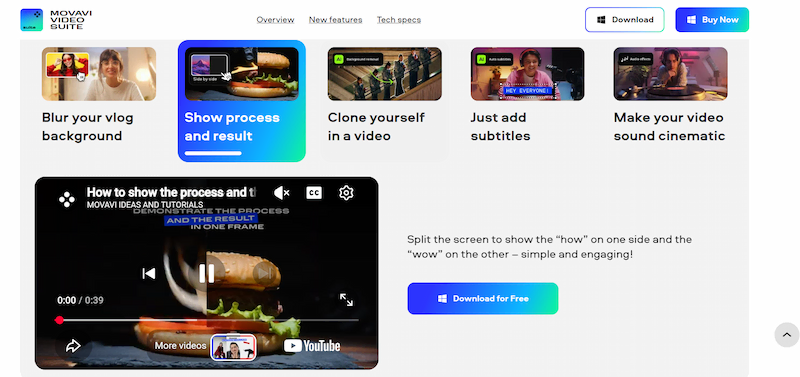
Movavi is known for its task-oriented interface. Many users say the next step is always clear. — a real design difference from editors that dump every tool on screen at once. It’s built for Windows and Mac, aimed at people who’ve found DaVinci Resolve or Premiere Pro overwhelming.
Standout features: smart scene detection, automatic captioning and transcription, motion tracking, and AI background removal. All of it sits inside a guided workflow that walks you through import, edit, and export, with no prior experience assumed. It also bundles a screen recorder and basic converter into the same app — handy if you’re making tutorial content and don’t want three tools open at once.
The catch: no permanent free tier, just a 7-day trial, and trial exports carry a watermark. After that, it’s a monthly subscription or a one-time lifetime license covering your current version only. Worth trying before you buy, but budget for it — unlike the truly free options on this list.
Compare the options
| Tool | Known for | Best for | Free plan | One real limitation |
|---|---|---|---|---|
| CapCut | Trending TikTok-native templates and a genuinely full AI toolkit | Phone-first editing, TikTok/Reels/Shorts | Full editing suite, 1080p export, no time limit | Roughly $9.99/mo (Standard) to $19.99/mo (Pro) as of 2026, though CapCut doesn’t publish this officially and it shifts by region |
| Clipchamp | Built into Windows 11, plus screen and webcam recording nobody expects | Windows users who don’t want to install anything | Unlimited 1080p exports, no watermark, free AI captions | 4K export sits behind Premium (often free if you already have Microsoft 365) |
| iMovie | Magic Movie and Storyboards auto-arranging your clips, seamless iPhone-to-Mac handoff | Mac and iPhone owners who want zero cost | Everything, forever, no watermark | One overlay track only — fine for picture-in-picture or green screen, not true multi-track stacking |
| VN Video Editor | A real multi-track timeline, keyframes, and color grading in a mobile app, with none of it paywalled | Phone or Windows editors who want more manual control than CapCut gives them | Everything unlocked, no watermark, no subscription | No AI features like background removal, ai voices, like capcut |
| Wondershare Filmora | Fastest on-ramp to frontier AI models (Sora, Veo, Kling) inside the timeline | Beginners ready to pay a little for AI-assisted editing | Full editor, but every export is watermarked | The “free” version isn’t really free — it’s a permanent watermark trial |
| CyberLink PowerDirector | TrueVelocity fast rendering, motion tracking, 360-degree and multicam support | Windows users who want more editing depth than Filmora | Watermarked exports, limited feature set | AI features run on a separate credits system on top of the subscription |
| Movavi Video Editor | Task-oriented interface that always shows you the next step — reviewers call it one of the easiest desktop editors to learn | Windows or Mac beginners who find other desktop editors intimidating | 7-day trial, full features | No permanent free tier — trial exports carry a watermark |
If your phone is your only camera and your budget is zero
Start with CapCut, or iMovie if you’re already on an iPhone. Both are free with no watermark. Both are built to be edited entirely on a phone. Neither assumes you own a laptop. Want more manual control than either gives you? VN Video Editor is the next step, and you still won’t need a laptop. I’ve written more on stretching a phone-only setup into actual income over here, if that’s the direction you’re headed.
The reality check on “free”
Free means different things depending on the tool. That difference is the whole decision. CapCut, Clipchamp, iMovie, and VN Video Editor are free the way most people assume free means: no watermark, no expiration. Filmora, PowerDirector, and Movavi are free (or trial) the software-industry way, which is closer to a time limit or a permanent watermark stamped on whatever you’re trying to share. Neither approach is wrong. But only one of them is actually free. If you’re looking for more free tools to start creating and earning online, check out my guide on best free ai tools for beginners to make money online.
One more honest limit: your device matters more than the software you pick. On an older laptop, a browser tool like Clipchamp or a phone-first app like CapCut or VN will feel a lot less frustrating than a heavier desktop editor like Filmora, PowerDirector, or Movavi, once you’re working with longer clips or higher resolutions.
If you want to turn this into actual income
Real freelance video editing work exists. Fiverr and Upwork both have active gigs, and local businesses regularly need someone to cut social clips they don’t have time to make themselves.
Here’s the clearer picture: Your first paying client probably isn’t showing up this week. The low end of freelance marketplaces is crowded with people undercutting on price. Start smaller than you’d like — a friend’s small business, a local gym’s Instagram, anything with a real deadline — before pitching strangers on Fiverr. It builds the portfolio that gets you hired later. If a steadier, less client-dependent passive income stream interests you more than freelancing, I’ve laid out other options here.
Next steps
- Pick based on your device first, not the feature list — phone-only, Windows, or Mac narrows this list to two or three options immediately.
- If your budget is zero, start with CapCut, or iMovie and actually finish one small project before comparing anything else.
- If you want more manual control than CapCut gives you, try VN Video Editor before paying for anything.
- Don’t buy Filmora, PowerDirector, or Movavi until you’ve confirmed the watermark (or trial limit) actually bothers you enough to pay for it.
FAQ
Which video editing software is best for beginners? There’s no single answer — it depends on your device and budget. CapCut and iMovie are the easiest entry points if you’re not ready to spend anything. Filmora is a solid step up once you want AI-assisted editing and don’t mind paying to remove the watermark.
What is the easiest video editing software for beginners? CapCut and iMovie both hide complexity well. You’ll export something shareable in your first session. Clipchamp is close behind if you’re on Windows and prefer working in a browser.
What is the best free video editing software in 2026? CapCut, Clipchamp, iMovie, and VN Video Editor are all genuinely free, no watermark, no catch. Of the four, VN gives you the most manual control — keyframes, color grading — without ever asking you to pay.
What’s the best video editing software for YouTube beginners? It depends how much editing your videos need. Simple talking-head content edits fine in CapCut or Clipchamp. Doing heavier cuts, color correction, or multi-cam setups? PowerDirector or Movavi give you more room to grow.
Is VN Video Editor good for beginners? Yes. Its interface needs no prior experience, even though it packs in more manual tools — keyframes, color curves — than CapCut. It’s a good pick once you’ve outgrown template-based editing but still don’t want to pay.
What is the best video editing software for Windows beginners? Clipchamp is the easiest start, since it’s already built into Windows 11 with nothing to install. VN for PC is a newer official option if you want more manual control and don’t want to pay. Want more editing depth and don’t mind paying? Movavi and PowerDirector are both built to stay approachable for first-timers.
You’ll probably switch tools within a year anyway, so don’t spend more time picking than you will editing.
I appreciate the distinction between truly free editors and the free-to-try tools that watermark exports, since that difference is easy to miss when comparing feature lists. The detail about CapCut hiding a real multi-track timeline under the templates is helpful context. I wonder whether the paid tiers’ 4K export is worth it for beginners, or if 1080p is fine until a project actually needs it.
Thanks for your appreciation. The thing about whether to use 4K or 1080p is that it entirely depends on your content niche and your audience’s device. If your content is something like documentaries or of that sort, which requires that ultimate experience, and your target audience are TV users, then you should use 4K export because it’s obviously much better than 1080p, having better quality and colors.
But for me personally, I use 1080p because my YouTube niche is health-related content, and 90% of my audience are mobile users. Plus, it’s faster to export in 1080p.